
はじめに
「カレンダー」ウィジェットでは、公開された投稿のみマーク表示されます。
そこで、予約投稿もマーク表示するように変更します。
この記事では、この方法について説明します。
完成イメージ
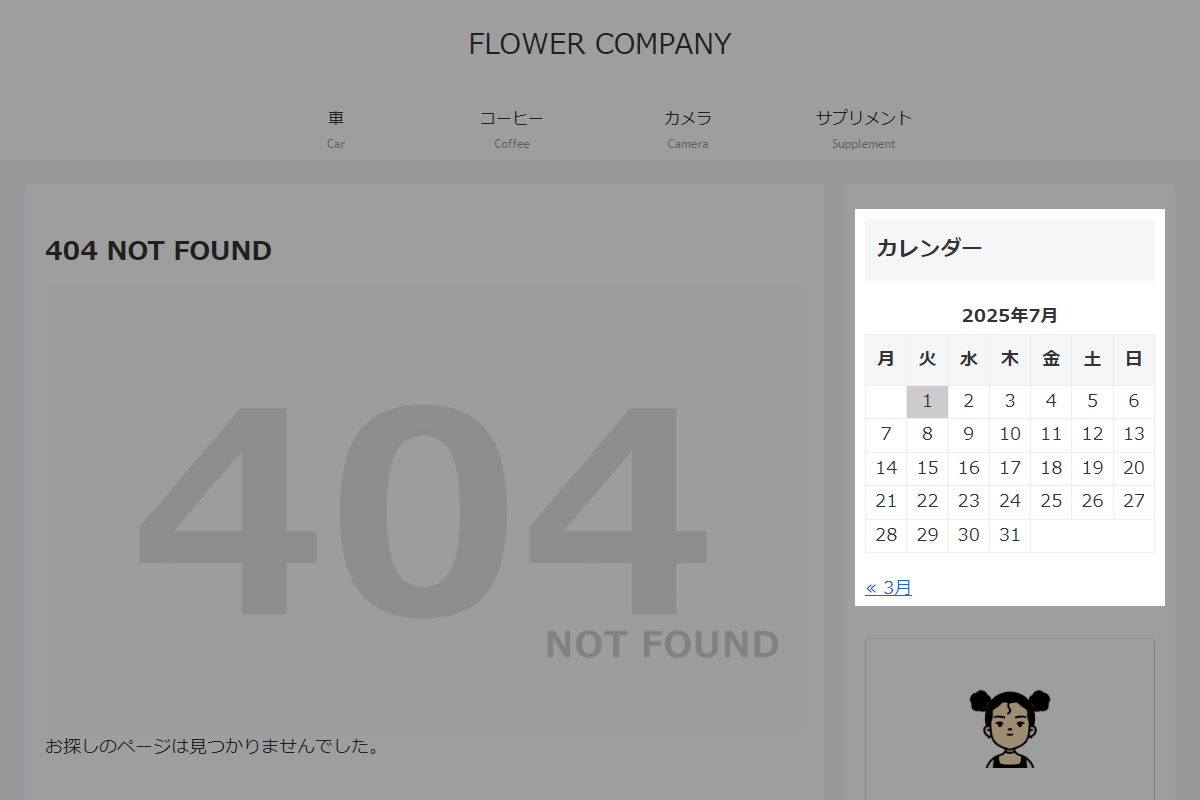
実装手順
以下の手順で実装します。
- ラベルPHPを追加
以下のコードをfunctions.phpに追加します。
add_filter('get_calendar', function ($html) { // WordPressのデータベースオブジェクトを取得 global $wpdb; // 表示する年を取得 $year = (int) (get_query_var('year') ?: current_time('Y')); // 表示する月を取得 $month = (int) (get_query_var('monthnum') ?: current_time('m')); // 予約投稿の日付を全件取得 $dates = $wpdb->get_col( "SELECT DISTINCT DATE(post_date) FROM {$wpdb->posts} WHERE post_type = 'post' AND post_status = 'future' ORDER BY post_date ASC" ); // 予約投稿が存在しない場合は処理対象外 if (!$dates) { return $html; } // 表示月に該当する予約日を設定 $days = []; // 表示月より後にある最初の予約月を設定 $next = null; // 予約投稿の日付を順番に処理 foreach ($dates as $date) { // 予約日を年・月・日に分割して取得 [$y, $m, $d] = array_map('intval', explode('-', $date)); // 表示月と一致する予約日を取得 if ($y === $year && $m === $month) { $days[] = $d; // 表示月より後にある最初の予約月を取得 } elseif (!$next && ($y > $year || ($y === $year && $m > $month))) { $next = [$y, $m]; } } // 表示月の予約日を順番に処理 foreach ($days as $d) { // 予約日のセルに future クラスを付与 $html = preg_replace_callback( '/<td([^>]*)>(\s*(?:<a[^>]*>)?\s*' . $d . '\s*(?:<\/a>)?\s*)<\/td>/i', function ($matches) { // td 要素の属性を取得 $attrs = $matches[1]; // td 要素内の内容を取得 $content = $matches[2]; // class 属性の有無を確認 if (preg_match('/class=["\']([^"\']*)["\']/i', $attrs)) { // 既存の class 属性に future クラスを追加 $attrs = preg_replace( '/class=["\']([^"\']*)["\']/i', 'class="$1 future"', $attrs ); } else { // class 属性がない場合は future クラスを新規追加 $attrs .= ' class="future"'; } // future クラスを追加した td 要素に置換 return '<td' . $attrs . '>' . $content . '</td>'; }, $html, 1 ); } // 次の予約月が存在する場合に処理 if ($next) { // 次の予約月へのリンクを生成 $link = sprintf( '<span class="wp-calendar-nav-next"><a href="%s">%s »</a></span>', esc_url(get_month_link($next[0], $next[1])), date_i18n('n月', mktime(0, 0, 0, $next[1], 1, $next[0])) ); // 空の次月リンクを予約月へのリンクに置換 $html = preg_replace( '/<span class="wp-calendar-nav-next">(?: |\s)*<\/span>/i', $link, $html, 1 ); } // 編集したカレンダーHTMLを返却 return $html; }); - ラベルCSSを追加
以下のコードをstyle.cssに追加します。
#wp-calendar .future {
  background-color: #ccc;
}
さいごに
今回紹介した方法を使えば、カレンダーウィジェットに予約投稿の日付を表示することができ、予約投稿を含むスケジュールを視覚的に確認できるようになります。
これにより、公開前の投稿も含めてスケジュール管理がしやすくなり、ユーザーにとってより便利なカレンダー機能を提供できます。
