はじめに

スタイルボタンの追加なんて、やってることは毎回同じで、結局CSSクラスを追加してるだけ。
デザインが変わらないなら、そもそもボタンなんて要らないし、本当に大事なのは「どんなCSSを書くか、どうデザインを当てるか」。
手段が目的になっちゃダメだわ。
以下の内容を実現します。
register_block_styleを使えば、ブロックにスタイルボタンを簡単に追加できます。
しかし、複数の条件を組み合わせたスタイルの設定には向いていません。
参考リンクのように、スタイルボタンが多数並ぶと、選択肢が煩雑に感じられることがあります。
そこで、独自のスタイルパネルを作成し、ユーザーが複数の条件に応じてCSSクラスを柔軟に追加できるUIを提供します。
これにより、より直感的かつ効率的にスタイルを適用できるようになります。
この記事では、この方法について説明します。
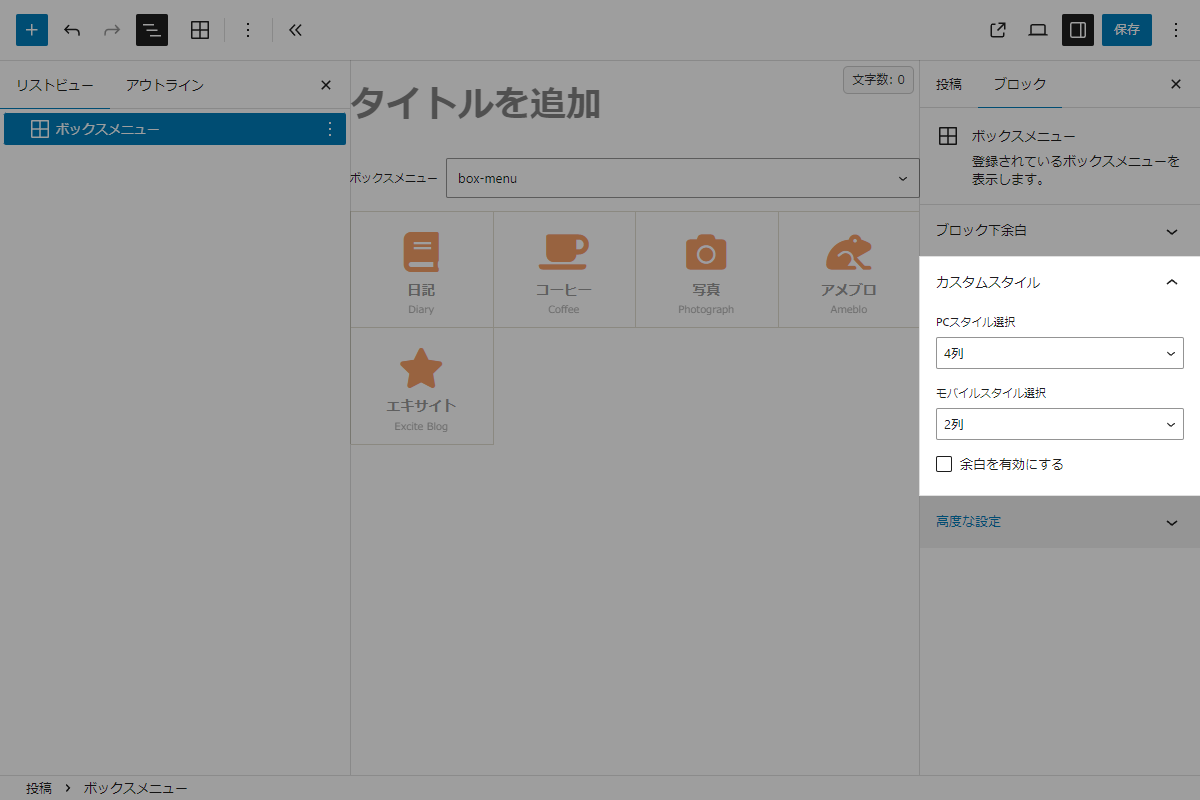
完成イメージ
実装手順
以下の手順で実装します。
- my-box-menu-style
- box-menu-style.php
- assets
- css
- style.css
- js
- admin.js
- css
- ラベルPHPを追加
以下のコードをbox-menu-style.phpに追加します。
<?php /** * Plugin Name: My Box Menu Style * Description: [C]ボックスメニューに、PC列数・モバイル列数・余白オプションを追加します。 * Version: 1.0.0 * Author: CHU-YA */ if (!defined('ABSPATH')) { exit; } // エディター用JS・CSSを追加 add_action('enqueue_block_editor_assets', function () { wp_enqueue_script('my-box-menu-style-editor', plugin_dir_url(__FILE__) . 'assets/js/admin.js', ['wp-blocks', 'wp-element', 'wp-editor', 'wp-components', 'wp-compose', 'wp-block-editor', 'wp-hooks'], filemtime(plugin_dir_path(__FILE__) . 'assets/js/admin.js'), true); }); // フロント・エディター共通のCSSを追加 add_action('enqueue_block_assets', function () { wp_enqueue_style('my-box-menu-style-css', plugin_dir_url(__FILE__) . 'assets/css/style.css', [], filemtime(plugin_dir_path(__FILE__) . 'assets/css/style.css')); }); - ラベルJavaScriptを追加
以下のコードをadmin.jsに追加します。
(function (wp) { // WordPress APIから必要な関数・コンポーネントを取得 var addFilter = wp.hooks.addFilter; var createHigherOrderComponent = wp.compose.createHigherOrderComponent; var Fragment = wp.element.Fragment; var InspectorControls = wp.blockEditor.InspectorControls; var PanelBody = wp.components.PanelBody; var SelectControl = wp.components.SelectControl; var CheckboxControl = wp.components.CheckboxControl; /** * PC表示の列数に対応するクラス * * @type {Array<{label: string, value: string}>} */ var PC_CLASSES = [ { label: '4列', value: '' }, { label: '5列', value: 'is-pc5' }, { label: '6列', value: 'is-pc6' }, ]; /** * モバイル表示の列数に対応するクラス * * @type {Array<{label: string, value: string}>} */ var MOBILE_CLASSES = [ { label: '2列', value: '' }, { label: '3列', value: 'is-sp3' }, ]; /** * ブロック編集画面を拡張する高階コンポーネント * * @param {Function} BlockEdit 元のブロック編集コンポーネント * @return {Function} 拡張したブロック編集コンポーネント */ var withCustomStyleClassControl = createHigherOrderComponent(function (BlockEdit) { /** * ブロック編集画面を描画 * * @param {Object} props ブロックのプロパティ * @return {JSX.Element} ブロック編集画面 */ return function (props) { var name = props.name; var attributes = props.attributes; var setAttributes = props.setAttributes; var isSelected = props.isSelected; // 対象ブロック以外は元の編集画面を表示 if (name !== 'cocoon-blocks/box-menu') { return wp.element.createElement(BlockEdit, props); } var currentClassName = attributes.className || ''; // 現在のクラスから選択中のPC・モバイル設定と余白設定を取得 var selectedPC = ''; var selectedMobile = ''; var hasGapClass = currentClassName.indexOf('is-gap') !== -1; PC_CLASSES.forEach(function (option) { if (option.value && currentClassName.indexOf(option.value) !== -1) { selectedPC = option.value; } }); MOBILE_CLASSES.forEach(function (option) { if (option.value && currentClassName.indexOf(option.value) !== -1) { selectedMobile = option.value; } }); /** * PC・モバイル・余白の設定に応じてクラス名を更新 * * @param {string} newPC 新しいPC用クラス名 * @param {string} newMobile 新しいモバイル用クラス名 * @param {boolean} gap 余白用クラスを付与するかどうか * @return {void} */ function updateClassName(newPC, newMobile, gap) { // PC・モバイル・余白用の既存クラスを除外 var otherClasses = currentClassName .split(' ') .filter(function (cls) { var excludeClasses = PC_CLASSES.concat(MOBILE_CLASSES).map(function (opt) { return opt.value; }); excludeClasses.push('is-gap'); return !excludeClasses.includes(cls); }) .join(' '); // 既存クラスと新しい設定を組み合わせてクラス名を生成 var newClassName = [otherClasses, newPC, newMobile] .filter(Boolean) .join(' '); // 余白設定が有効な場合はクラスを追加 if (gap) { newClassName = (newClassName + ' is-gap').trim(); } // ブロックのクラス属性を更新 setAttributes({ className: newClassName }); } // ブロック編集画面と設定パネルを描画 return wp.element.createElement( Fragment, {}, // 元のブロック編集画面を表示 wp.element.createElement(BlockEdit, props), // ブロック選択時のみ設定パネルを表示 isSelected && wp.element.createElement( InspectorControls, {}, wp.element.createElement( PanelBody, { title: 'カスタムスタイル', initialOpen: true }, // PC表示の列数を選択 wp.element.createElement(SelectControl, { label: 'PCスタイル選択', value: selectedPC, options: PC_CLASSES, onChange: function (value) { selectedPC = value; updateClassName(value, selectedMobile, hasGapClass); }, }), // モバイル表示の列数を選択 wp.element.createElement(SelectControl, { label: 'モバイルスタイル選択', value: selectedMobile, options: MOBILE_CLASSES, onChange: function (value) { selectedMobile = value; updateClassName(selectedPC, value, hasGapClass); }, }), // 余白設定を切り替え wp.element.createElement(CheckboxControl, { label: '余白を有効にする', checked: hasGapClass, onChange: function (checked) { hasGapClass = checked; updateClassName(selectedPC, selectedMobile, checked); }, }) ) ) ); }; }, 'withCustomStyleClassControl'); // ブロック編集画面にカスタム設定を追加 addFilter( 'editor.BlockEdit', 'my-plugin/my-box-menu', withCustomStyleClassControl ); })(window.wp); - ラベルCSSを追加
以下のコードをstyle.cssに追加します。
:root {
  --box-menu: 4;
  --box-gap: 0;
}

.is-pc5 {
  --box-menu: 5;
}

.is-pc6 {
  --box-menu: 6;
}

.is-gap {
  --box-gap: 10px;
}

.box-menu-box {
  .box-menus {
    display: grid;
    gap: var(--box-gap);
    grid-template-columns: repeat(var(--box-menu), 1fr);
  }

  @media (max-width: 834px) {
    .box-menus {
      --box-menu: 2;
    }

    &.is-sp3 .box-menus {
      --box-menu: 3;
    }
  }
}

body .box-menus .box-menu {
  width: 100%;
}
さいごに
今回紹介した方法を使えば、Cocoonのボックスメニューに対して柔軟なスタイル指定が可能になり、複数の条件を直感的なUIで設定できます。register_block_styleでは表現しきれない複合スタイルの管理を、ひとつのパネルUIに集約することで、操作性と視認性を高めることができます。