
はじめに
プラグイン「Show Current Template」などを使用せずに、現在表示しているページで使用されているテーマのテンプレートファイル名を表示します。
この記事では、この方法について説明します。
完成イメージ
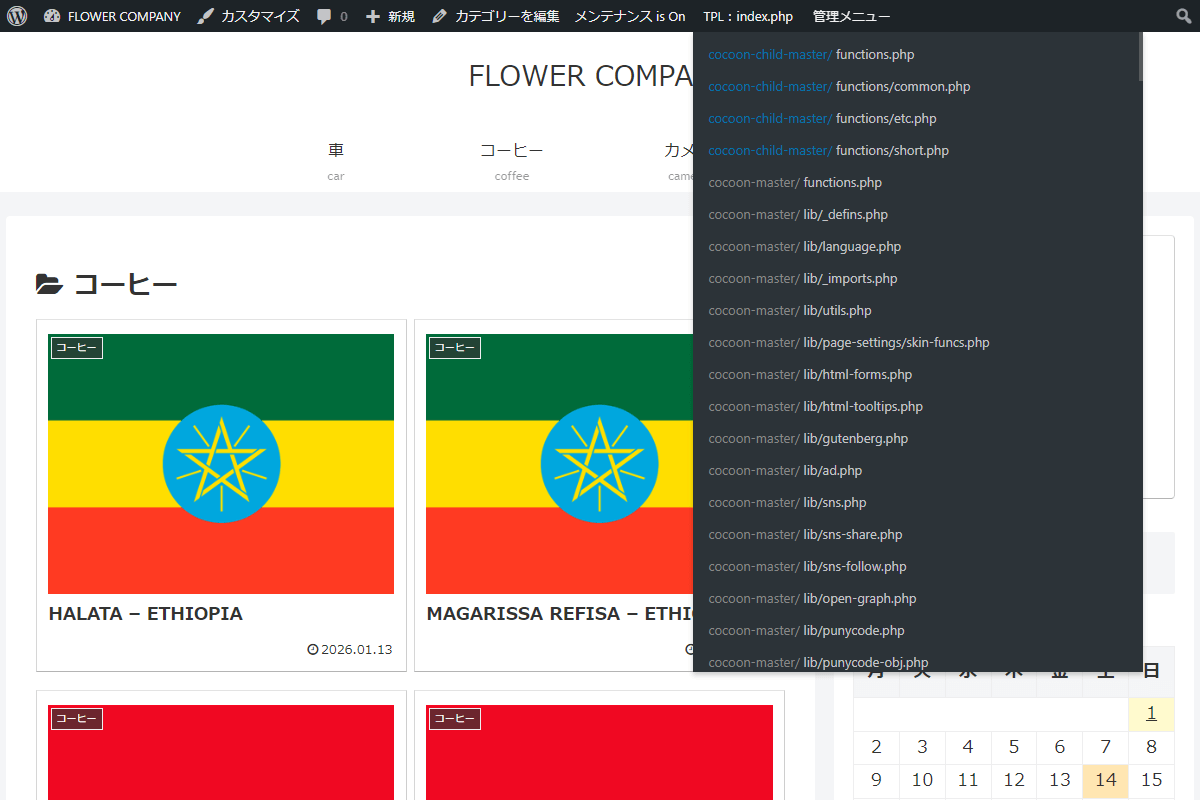
実装手順
以下のコードをfunctions.phpに追加します。
// ツールバーにメニューを追加
add_action('admin_bar_menu', function ($wp_admin_bar) {
  // 権限を確認
  if (is_admin() || !current_user_can('manage_options')) {
    return;
  }

  global $template;

  // メインテンプレートが未セットの場合
  if (!$template) {
    return;
  }

  // ツールバーにテンプレート表示用の親ノードを追加
  $wp_admin_bar->add_node([
    'id'      => 'tpl_info_parent',
    'title'   => 'TPL:' . esc_html(basename($template)),
    'href'    => false,
    'meta'    => [
      'class' => 'menupop',
    ],
  ]);
}, 999);


// フロント用JS・CSSを追加
add_action('wp_enqueue_scripts', function () {
  if (is_admin() || !current_user_can('manage_options') || !is_admin_bar_showing()) {
    return;
  }

  ob_start();
  ?>
  #wp-admin-bar-tpl_info_parent:hover > .ab-sub-wrapper {
    display: block;
  }

  #wp-admin-bar-tpl_info_parent .ab-sub-wrapper {
    display: block;
    max-height: 80vh;
    overflow-y: auto;
    width: 450px;
  }

  .tpl-info__row {
    padding: 0 15px !important;
  }

  .tpl-info__theme-prefix {
    color: #888;
    flex-shrink: 0;
    font-weight: bold;
    margin-right: 8px;
  }

  .tpl-info__row--main {
    background: rgba(0, 255, 200, 0.1);
    color: #00ffc8;
  }

  .tpl-info__row--main .tpl-info__theme-prefix {
    color: #00ffc8;
    opacity: 0.8;
  }

  .tpl-info__theme-prefix--child {
    color: #0073aa;
  }
  <?php
  wp_add_inline_style('admin-bar', ob_get_clean());
});


// 全出力完了後に読み込まれたテンプレート一覧を取得・挿入
add_action('shutdown', function () {
  // 権限を確認
  if (is_admin() || !current_user_can('manage_options') || !is_admin_bar_showing()) {
    return;
  }

  global $template;

  // 判定用のメインテンプレートが存在しない場合
  if (!$template) {
    return;
  }

  // リクエスト内でinclude / requireされた全ファイルを取得
  $included_files = get_included_files();

  // 親テーマおよび子テーマの絶対パスを取得
  $parent_dir_path = get_template_directory();
  $child_dir_path  = get_stylesheet_directory();

  // 表示用のテーマフォルダ名を取得
  $parent_folder_name = basename($parent_dir_path);
  $child_folder_name  = basename($child_dir_path);

  $html_items = '';

  // 読み込まれたファイルを絞り込み、HTMLリストを生成
  foreach ($included_files as $file) {
    $is_in_child  = (strpos($file, $child_dir_path) !== false);
    $is_in_parent = (strpos($file, $parent_dir_path) !== false);

    // 親テーマ・子テーマ配下以外のファイル(プラグイン・コア等)は除外
    if (!$is_in_child && !$is_in_parent) {
      continue;
    }

    // テーマディレクトリからの相対パスを作成
    $rel_path = ltrim(
      str_replace([$parent_dir_path, $child_dir_path], '', $file),
      '/\\'
    );

    // 読み込みファイルがメインテンプレートか判定
    $is_main = (realpath($file) === realpath($template));

    // 所属テーマ(親/子)に応じた表示名・クラスを設定
    $theme_label = $is_in_child ? $child_folder_name : $parent_folder_name;
    $theme_class = $is_in_child ? 'tpl-info__theme-prefix--child' : '';
    $row_class   = $is_main ? 'tpl-info__row--main' : '';

    ob_start();
    ?>
    <li>
      <div class="tpl-info__row <?= esc_attr($row_class); ?>">
        <span class="tpl-info__theme-prefix <?= esc_attr($theme_class); ?>">
          <?= esc_html($theme_label); ?>/
        </span>
        <span>
          <?= esc_html($rel_path); ?>
        </span>
      </div>
    </li>
    <?php
    $html_items .= ob_get_clean();
  }

  ?>
  <script>
  jQuery(function ($) {
    var $parentNode = $('#wp-admin-bar-tpl_info_parent');
    if (!$parentNode.length) {
      return;
    }

    // 生成済みのリストHTMLを埋め込み、サブメニュー構造を生成
    var $ul = $('<ul class="ab-submenu"></ul>').html(<?= json_encode($html_items); ?>);
    var $wrapper = $('<div class="ab-sub-wrapper"></div>').append($ul);

    // 親ノード内にサブメニューDOMを結合
    $parentNode.append($wrapper);
  });
  </script>
  <?php
}, 999);さいごに
今回紹介した方法を使えば、、プラグインを使わずに、現在のページで使用されているテンプレートファイルを可視化できます。
開発やカスタマイズ時に読み込まれているファイルを即座に確認できるため、デバッグ効率の向上やテーマ構造の理解にも役立ちます。

