はじめに
ブログの配信では、投稿記事(コンテンツ)があくまでも主体です。
そのため、初心者が無闇に固定ページでフロントページを作成する必要はありません。
Cocoonの標準フロントページを利用するだけで、十分おしゃれなページになります。
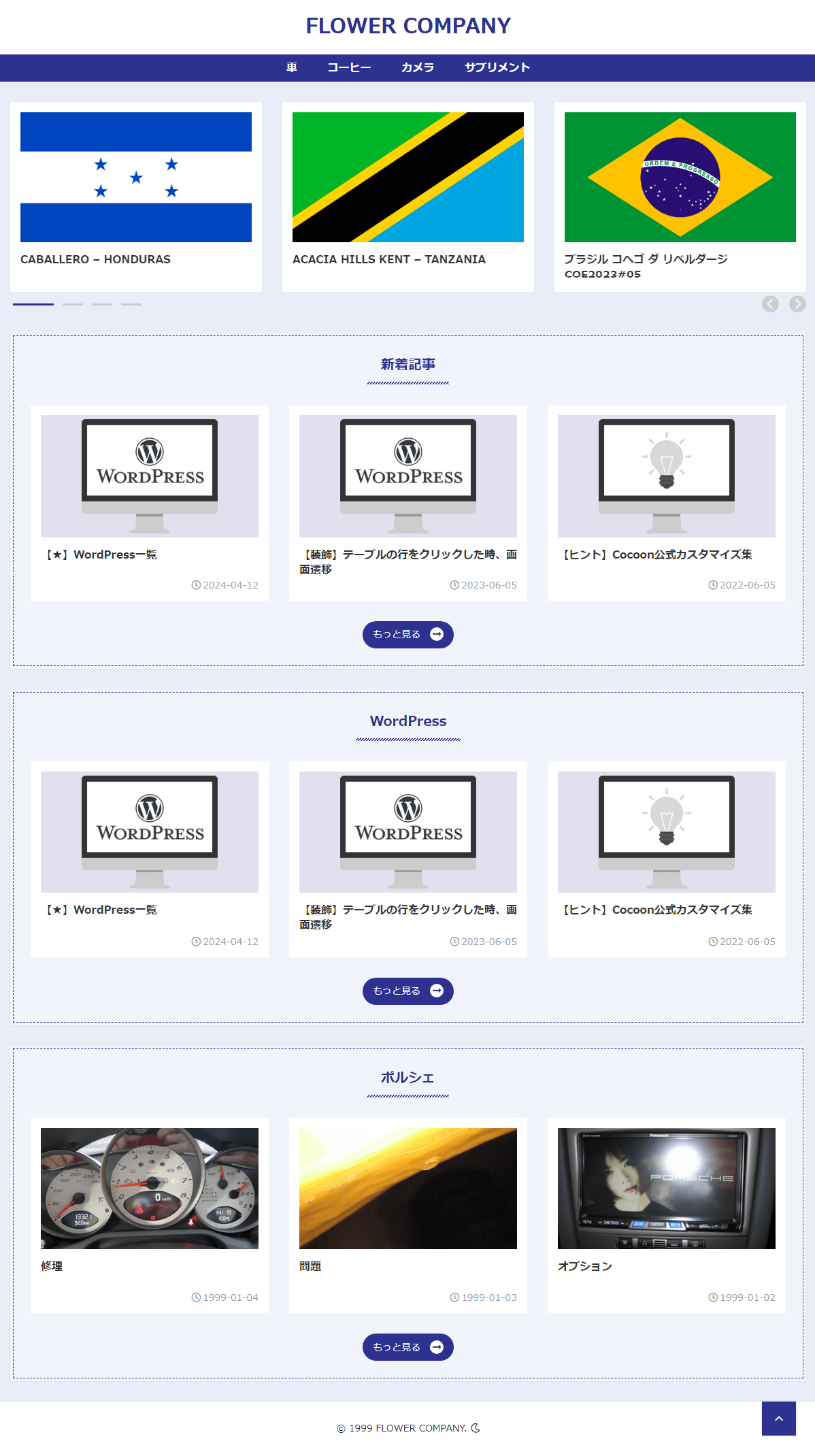
さらに「メイド・イン・ヘブン」(以下、本スキン)を利用することで、Cocoonの標準フロントページをJIN:Rのデモページ風におしゃれにカスタマイズできます。
この記事では、数ステップの手順と、CSSを子テーマにコピペするだけで簡単に実現する方法を説明します。

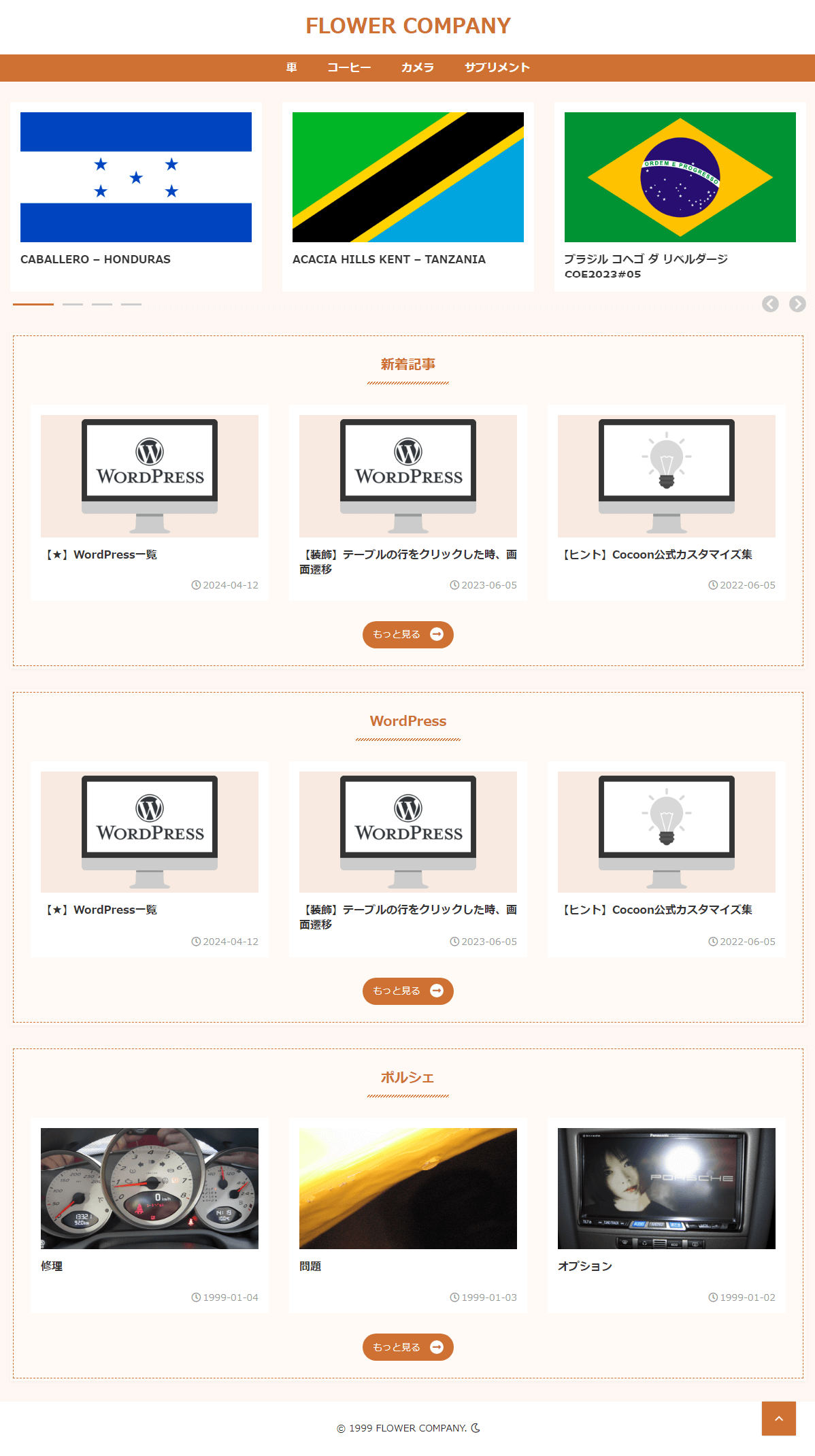
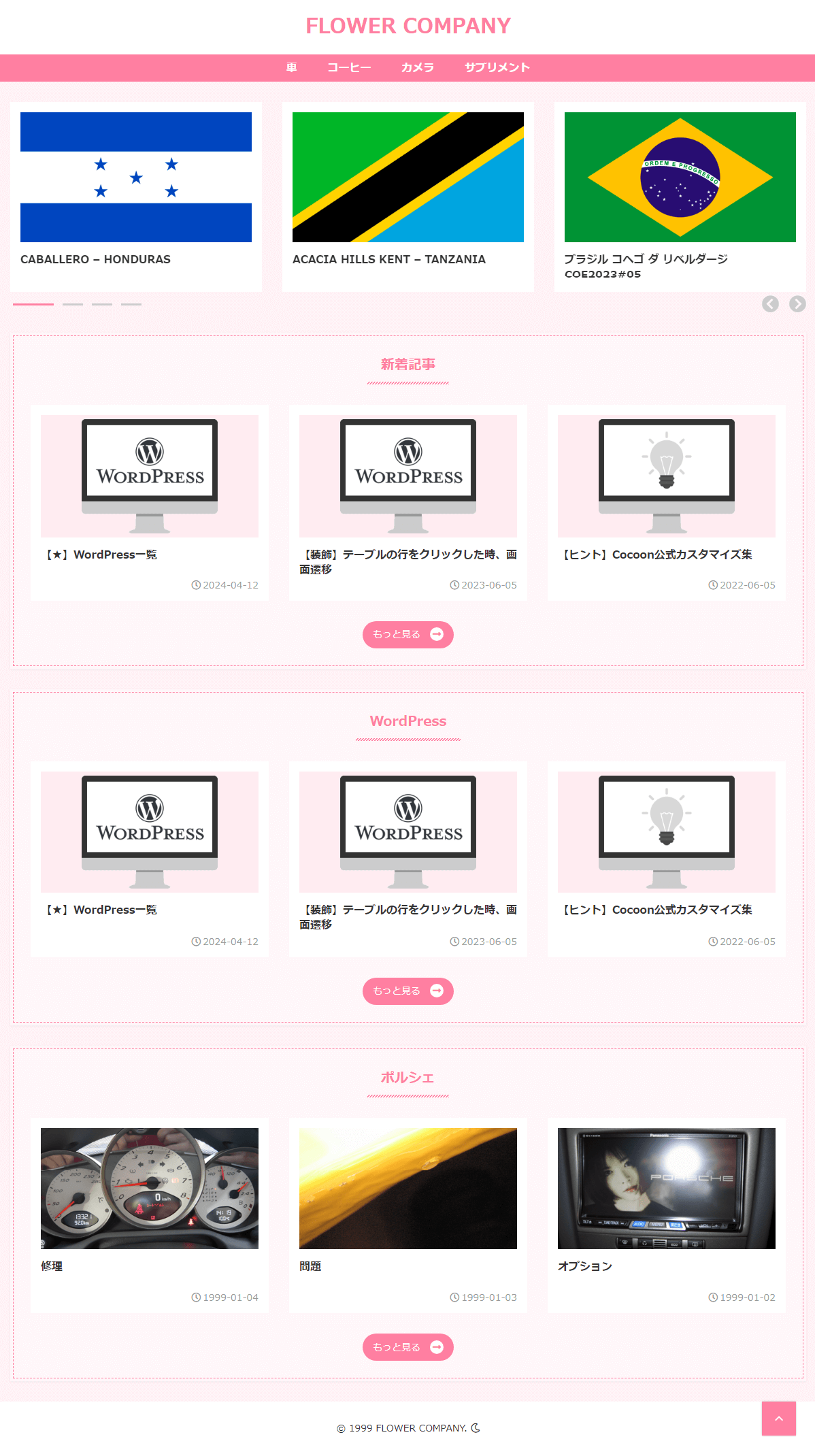
完成イメージ
- 例1
- 例2
- 例3
- 例4

実装手順
以下の手順で実装します。
- ラベルCSSを追加
以下のコードをコピーし、子テーマのstyle.cssに貼り付けます。先頭から上書きしてください。
@charset "UTF-8"; /*! Theme Name: Cocoon Child Description: Cocoon専用の子テーマ Theme URI: https://wp-cocoon.com/ Author: わいひら Author URI: https://nelog.jp/ Template: cocoon-master Version: 1.1.3 */ /******************************************************************************* ** 全体 *******************************************************************************/ :root { --stitch-bgcolor: color-mix(in srgb, var(--body-color) 60%, white); --stitch-border: var(--main-color); } .hvn-dark { --stitch-bgcolor: transparent; --stitch-border: #fff; } .hvn-dark .list-title-in { --main-color: var(--title-color); } .hvn-dark .front-top-page.no-sidebar #list-columns { --title-color: #fff; } /* ステッチ枠 */ .body:not(:is(.single, .page)) .main:not(:has([class*="front-page-type-category"])), .front-page-type-category .list-column, .front-page-type-category-2-columns .list-columns, .front-page-type-category-3-columns .list-columns, .list-new-entries, .list-popular { background-color: var(--stitch-bgcolor); box-shadow: 0 1px 3px 0px rgba(170, 170, 170, 0.18); padding: var(--gap30) var(--main-padding); position: relative; } .body:not(:is(.single, .page)) .main:not(:has([class*="front-page-type-category"]))::before, .front-page-type-category .list-column::before, .front-page-type-category-2-columns .list-columns::before, .front-page-type-category-3-columns .list-columns::before, .list-new-entries::before, .list-popular::before { border: 1px dashed var(--stitch-border); bottom: auto; box-sizing: border-box; content: ''; display: block; height: calc(100% - 8px); left: 4px !important; pointer-events: none; position: absolute; right: auto; top: 4px !important; width: calc(100% - 8px) !important; } /******************************************************************************* ** SWIPER *******************************************************************************/ .body .is-auto-horizontal { padding-bottom: var(--gap30); } /* ページネーション */ .body .is-auto-horizontal .swiper-pagination { bottom: 10px !important; display: flex; gap: 5px; } .body .is-auto-horizontal .swiper-pagination-bullet { background-color: #ccc; border-radius: 0; height: 3px; margin: 0 !important; opacity: 1; transition: all 0.3s; width: 30px; } .body .is-auto-horizontal .swiper-pagination-bullet.swiper-pagination-bullet-active { background-color: var(--main-color); width: 60px; } /* ページ送りボタン */ .body .is-auto-horizontal .swiper-button-next, .body .is-auto-horizontal .swiper-button-prev { bottom: 0; height: unset !important; left: auto !important; right: 40px; top: auto !important; transform: unset; } .body .is-auto-horizontal .swiper-button-next { right: 0; } .body .is-auto-horizontal .swiper-button-prev::after, .body .is-auto-horizontal .swiper-button-next::after { color: #ccc; font-size: 25px; } .body .is-auto-horizontal .swiper-button-prev:hover::after, .body .is-auto-horizontal .swiper-button-next:hover::after { color: var(--main-color); } /******************************************************************************* ** タイトル *******************************************************************************/ .list-title-in::before { background: linear-gradient(135deg, transparent 25%, var(--main-color) 26%, var(--main-color) 50%, transparent 51%, transparent 75%, var(--main-color) 76%, var(--main-color)); background-size: 4px 4px; bottom: 0; content: ''; height: 4px; left: 0; margin: 0; position: absolute; top: unset; width: 100%; } .list-title-in::after { content: none; } .body .list-title-in { color: var(--main-color); font-size: 20px; padding: 0 1em 0.5em; } /******************************************************************************* ** もっと見るボタン *******************************************************************************/ .body .list-more-button { background-color: var(--main-color); border: 0; border-radius: 100px; box-shadow: unset; color: var(--text-color); display: inline-block; padding: 5px 15px !important; width: fit-content; } .list-more-button::after { background-color: #fff; border-radius: 100px; color: var(--main-color); content: '\f30b'; display: inline-block; font-family: 'Font Awesome 5 Free'; font-weight: bold; margin: 0 0 0 1em; line-height: 20px; text-align: center; transform: translateX(0); transition: all 0.2s ease; width: 20px; } .list-more-button:hover::after { transform: translateX(5px); } /******************************************************************************* ** ペーネーション *******************************************************************************/ .pagination-next { display: none !important; } - ラベルメイド・イン・ヘブン設定(基本カラー)
外観→カスタマイズ→メイド・イン・ヘブン設定→基本カラーから、ブログのデザインを設定します。
表1に示す項目の例1~4のいずれかを設定します。
基本カラー # 項目 例1(薄茶) 例2(ピンク) 例3(青) 例4(緑) 1 サイトカラー #ce7133#ff7fa1#2d3291#237a632 背景カラー #fff7f2#fff2f6#e8edf7#f5faf83 テキストカラー #ffffff#ffffff#ffffff#ffffff - ラベルメイド・イン・ヘブン設定(拡張)
表2に示す項目を設定します。投稿・固定ページ以外、1カラム表示となります。
拡張 # 項目 値 1 フロントページタイプ カテゴリーごと 2 カードタイプ 縦型カード3列 - ラベルCocoon設定
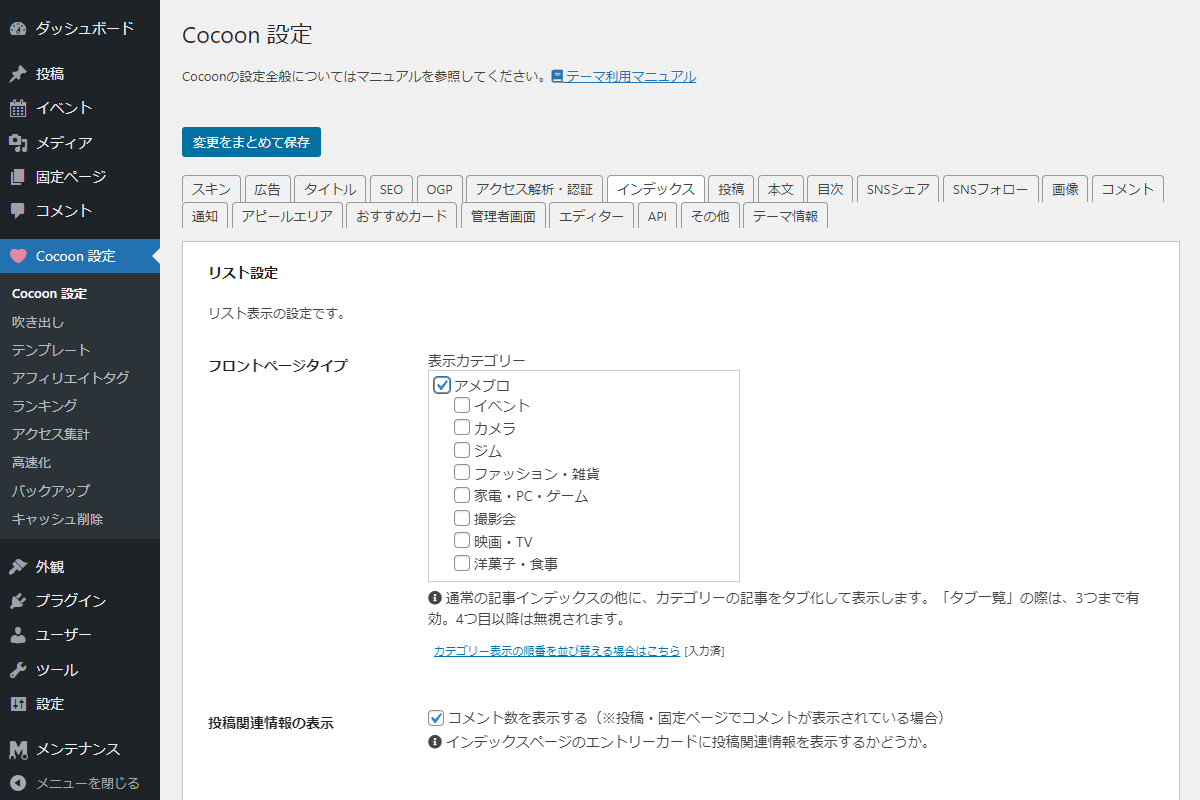
Cocoon設定 図1に示すように、Cocoonの設定→インデックスの表示カテゴリーを設定します。
設定しないと、新着記事のみが表示されます。
参考:配色
表3に示す配色も美しいと思います。
さまざまな配色を試して、自分の好みを見つけるのも楽しいでしょう。
| # | 項目 | くすみピンク | くすみブルー | チョコミント | アーバン | パステル |
|---|---|---|---|---|---|---|
| 1 | サイトカラー | #987373 | #738698 | #40322d | #dc5f00 | #6681a4 |
| 2 | 背景カラー | #d8cbc4 | #c4cdd8 | #7ad9bd | #666c7b | #fadbd9 |
| 3 | テキストカラー | #ffffff | #ffffff | #ffffff | #ffffff | #ffffff |
| 4 | フッター背景カラー | #dbb0b3 | #b0c8db | #8fcbab | #3a3f43 | #f9fad2 |
さいごに
今回紹介した方法を使えば、Cocoonの標準フロントページをJIN風にカスタマイズできます。
初心者でも簡単にできるので、ぜひ試してみてください。