
はじめに
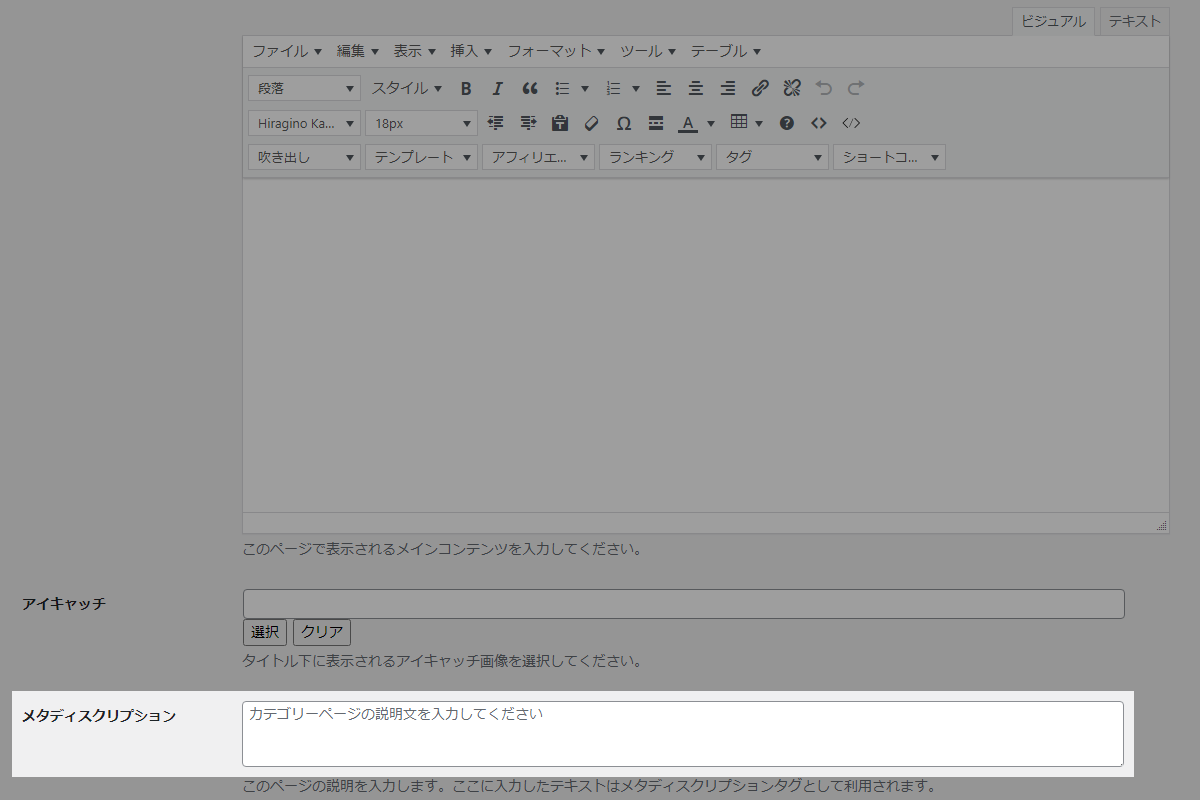
Cocoonでは各カテゴリーにメタディスクリプションを設定する機能があります(図1参照)。
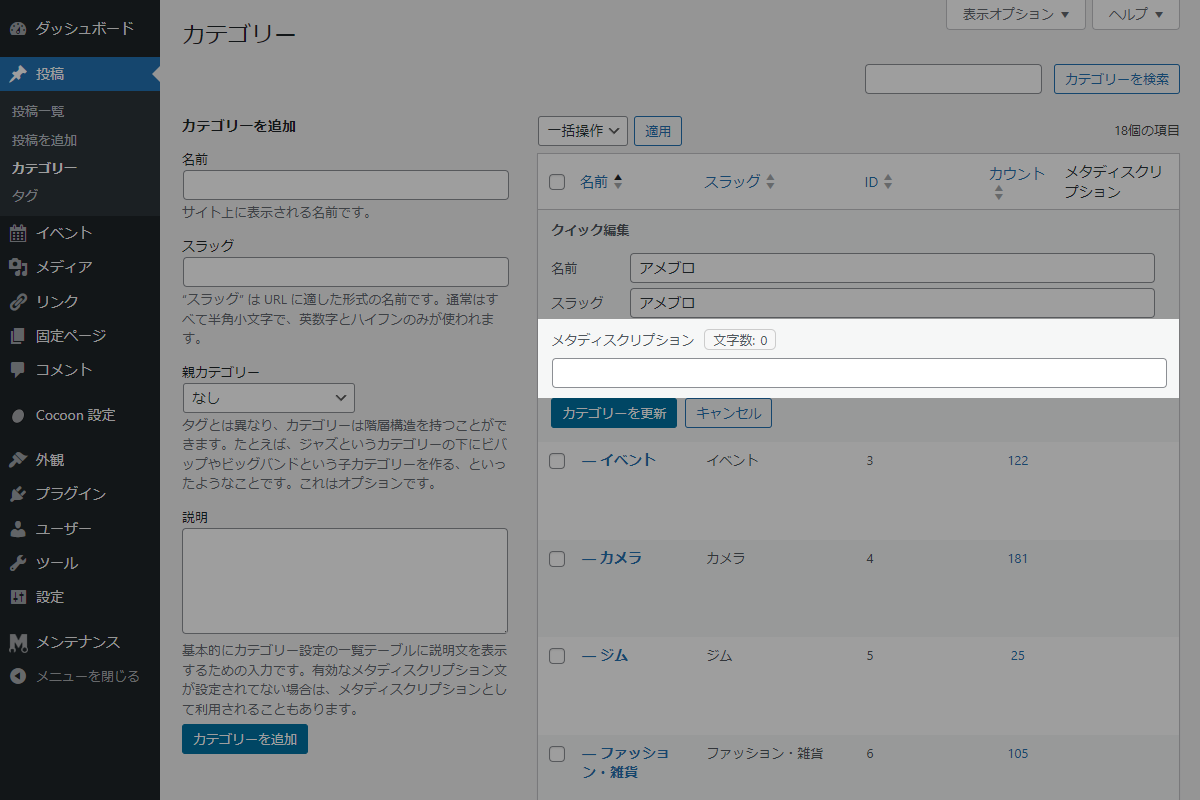
そのメタディスクリプションを、管理画面のカテゴリー一覧に表示し、クイック編集できるようにします。
この記事では、この方法について説明します。
完成イメージ
実装手順
以下のコードをfunctions.phpに追加します。
// 管理画面一覧にカラムを追加
add_filter('manage_edit-category_columns', function ($columns) {
  $columns['category_meta_description'] = 'メタディスクリプション';

  return $columns;
});


// 管理画面一覧のカラムにデータを表示
add_action('manage_category_custom_column', function ($content, $column_name, $term_id) {
  if ($column_name !== 'category_meta_description') {
    return $content;
  }

  $meta_desc = get_term_meta($term_id, 'the_category_meta_description', true);

  return esc_html($meta_desc);
}, 10, 3);


// クイック編集画面にカスタムフィールドを追加
add_action('quick_edit_custom_box', function ($column_name, $screen, $taxonomy) {
  if ($taxonomy !== 'category' || $column_name !== 'category_meta_description') {
    return;
  }

  ?>
  <fieldset class="category-meta-description">
    <?php wp_nonce_field('category_meta_description_action', 'category_meta_description_nonce'); ?>
    <label>
      <span class="title" style="width:fit-content">メタディスクリプション</span>
      <span class="str-count" style="width:fit-content">文字数:<span class="category-meta-description__count">0</span></span>
      <input type="text" name="category_meta_description" id="edit-category-meta-description" style="width:100%">
    </label>
  </fieldset>
  <?php
}, 10, 3);


// 管理画面用JS・CSSを追加
add_action('admin_enqueue_scripts', function ($hook) {
  if ($hook !== 'edit-tags.php') {
    return;
  }

  $screen = get_current_screen();
  if (!$screen || $screen->taxonomy !== 'category') {
    return;
  }

  ob_start();
  ?>
  jQuery(function ($) {
    var $wp_inline_edit = inlineEditTax.edit;

    inlineEditTax.edit = function (id) {
      $wp_inline_edit.apply(this, arguments);
      var $term_id = parseInt(this.getId(id));

      if ($term_id <= 0) {
        return;
      }

      var $edit_row = $('#edit-' + $term_id);
      var $term_row = $('#tag-' + $term_id);

      var $custom_field_value = $('.column-category_meta_description', $term_row).text().trim();
      var $elm = $('#edit-category-meta-description', $edit_row);
      $elm.val($custom_field_value);

      // 文字数表示
      $('.category-meta-description__count', $edit_row).text($custom_field_value.length);
      $elm.off('input').on('input', function () {
        $('.category-meta-description__count', $edit_row).text($(this).val().length);
      });
    };
  });
  <?php
  wp_add_inline_script('jquery', ob_get_clean());
});


// カテゴリー編集の設定を保存
add_action('edited_category', function ($term_id) {
  // nonceチェック
  if (!isset($_POST['category_meta_description_nonce']) || !wp_verify_nonce($_POST['category_meta_description_nonce'], 'category_meta_description_action')) {
    return;
  }

  if (isset($_POST['category_meta_description'])) {
    update_term_meta($term_id, 'the_category_meta_description', sanitize_text_field($_POST['category_meta_description']));
  }
});
解説
- 管理画面一覧にカラム追加
- カラム名を
the_category_meta_descriptionに設定。
- カラム名を
- 管理画面一覧にカスタムデータ表示
- カテゴリーのメタディスクリプションに使用するカスタムフィールド名は
the_category_meta_description。
- カテゴリーのメタディスクリプションに使用するカスタムフィールド名は
- クイック編集画面にカスタムフィールドの値を反映
- クイック編集に追加したフォームにデータを表示するには、JavaScriptを使用。
inlineEditTax.edit関数は「クイック編集」ボタンがクリックされたときに呼び出される。- この関数で得られる情報はカテゴリーID(
$term_id)のみ。 - このIDを使用して、カテゴリー一覧のカラムに表示されているカスタムフィールドの値をHTMLから取得。
- 取得した結果を、入力フォームに設定。
- クイック編集に追加したフォームにデータを表示するには、JavaScriptを使用。
参考:投稿一覧にカスタムフィールドを表示しクイック編集可能にする方法
スキンのデザインに目が行きがちですが、実は管理画面の使い勝手も大幅に向上しています。
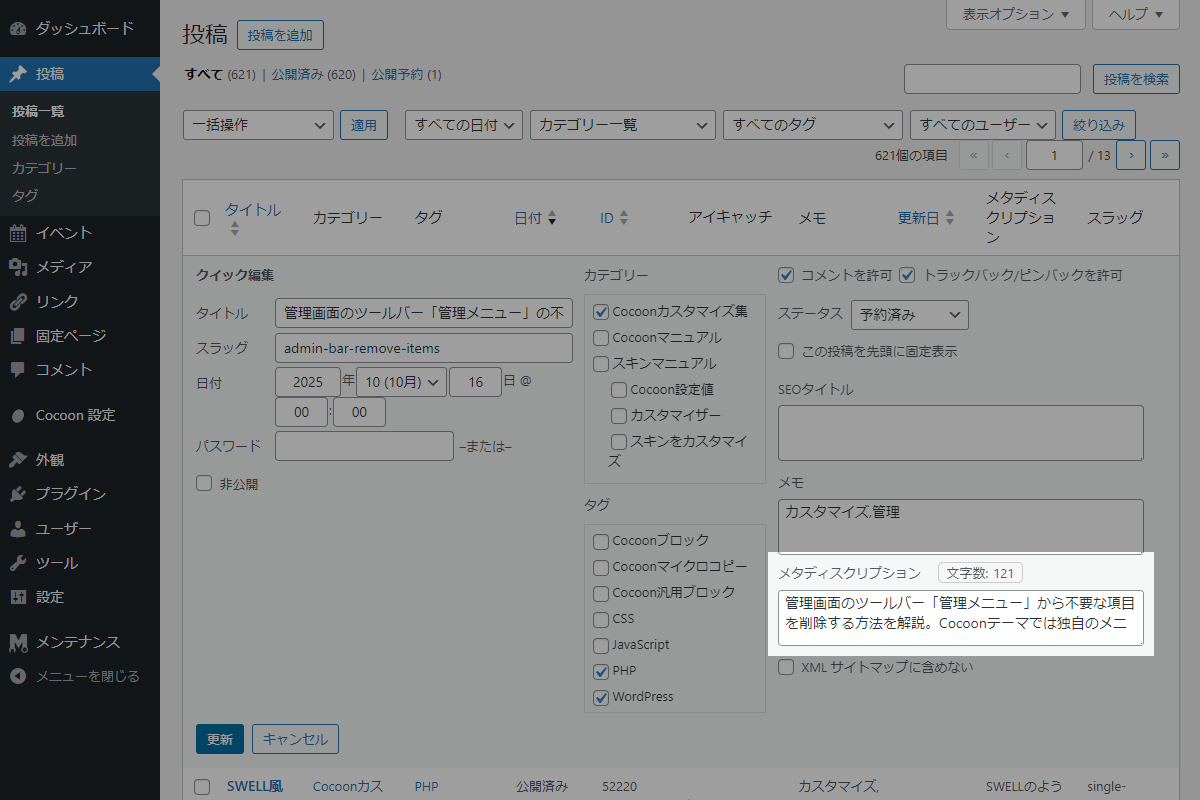
その一例が、図2に示すように、投稿一覧のクイック編集機能でメタディスクリプションを直接編集できるようになった点です。

これにより、投稿を個別に開かなくても簡単に編集が可能になり、作業効率が大幅に向上します。
さらに、他の投稿のメタディスクリプションと比較しながら、文の統一性を確認することも容易になりました。
完成イメージ
実装手順
以下のコードをfunctions.phpに追加します。
// 管理画面一覧にカラムを追加
add_filter('manage_post_posts_columns', function ($columns) {
  $columns['page_meta_description'] = 'メタディスクリプション';

  return $columns;
});


// 管理画面一覧のカラムにデータを表示
add_action('manage_posts_custom_column', function ($column_name, $post_id) {
  if ($column_name === 'page_meta_description') {
    echo esc_html(get_post_meta($post_id, 'the_page_meta_description', true));
  }
}, 10, 2);


// クイック編集画面にカスタムフィールドを追加
add_action('quick_edit_custom_box', function ($column_name, $post_type) {
  if ($post_type !== 'post' || $column_name !== 'page_meta_description') {
    return;
  }

  static $print_nonce = true;

  if ($print_nonce) {
    $print_nonce = false;
    wp_nonce_field('page_meta_description_action', 'page_meta_description_nonce');
  }

  ?>
  <fieldset class="inline-edit-col-right inline-custom-meta">
    <div class="inline-edit-col column-page_meta_description">
      <label class="inline-edit-group">
        <span class="title">メタディスクリプション</span>
        <span class="str-count">文字数:<span class="page-meta-description__count">0</span></span>
        <textarea name="page_meta_description" id="edit-page-meta-description"></textarea>
      </label>
    </div>
  </fieldset>
  <?php
}, 10, 2);


// 管理画面用JS・CSSを追加
add_action('admin_enqueue_scripts', function ($hook) {
  if ($hook !== 'edit.php') {
    return;
  }

  $screen = get_current_screen();
  if (!$screen || $screen->post_type !== 'post') {
    return;
  }

  ob_start();
  ?>
  jQuery(function ($) {
    var $wp_inline_edit = inlineEditPost.edit;

    inlineEditPost.edit = function (id) {
      $wp_inline_edit.apply(this, arguments);
      var $post_id = (typeof (id) === 'object') ? parseInt(this.getId(id)) : 0;

      if ($post_id <= 0) {
        return;
      }

      var $edit_row = $('#edit-' + $post_id);
      var $post_row = $('#post-' + $post_id);

      // メタディスクリプションの値取得
      var $meta_description = $('.column-page_meta_description', $post_row).text().trim();
      var $elm = $('#edit-page-meta-description', $edit_row);
      $elm.val($meta_description);

      // 文字数表示
      $('.page-meta-description__count', $edit_row).text($meta_description.length);
      $elm.off('input').on('input', function () {
        $('.page-meta-description__count', $edit_row).text($(this).val().length);
      });
    };
  });
  <?php
  wp_add_inline_script('jquery', ob_get_clean());
});


// 投稿データを保存
add_action('save_post', function ($post_id) {
  if (get_post_type($post_id) !== 'post') {
    return;
  }

  // nonceチェック
  if (!isset($_POST['page_meta_description_nonce']) || !wp_verify_nonce($_POST['page_meta_description_nonce'], 'page_meta_description_action')) {
    return;
  }

  // 自動保存チェック
  if (defined('DOING_AUTOSAVE') && DOING_AUTOSAVE) {
    return;
  }

  // リビジョンは除外
  if (wp_is_post_revision($post_id)) {
    return;
  }

  // 権限チェック
  if (!current_user_can('edit_post', $post_id)) {
    return;
  }

  if (isset($_POST['page_meta_description'])) {
    update_post_meta($post_id, 'the_page_meta_description', sanitize_textarea_field($_POST['page_meta_description']));
  }
});
補足
クイック編集画面に項目を追加するquick_edit_custom_boxフックは、「追加したカスタムフィールドは、必ず画面の一番右下の端に強制配置される」というシステム上の強い制限があります。
そのため、PHPのコードだけでは、「パスワード欄の下」のような左カラムの特定の場所にピンポイントでテキストボックスを表示させることができません。
これを解決するために、以下のようにJavaScripでフォームを移動させる必要があります。
add_action('admin_footer-edit.php', function () {
:
    jQuery(function ($) {
      var $wp_inline_edit = inlineEditPost.edit;

      inlineEditPost.edit = function(id) {
        $wp_inline_edit.apply(this, arguments);
        var $post_id = (typeof(id) === 'object') ? parseInt(this.getId(id)) : 0;

        if ($post_id > 0) {
          var $edit_row = $('#edit-' + $post_id);
          var $post_row = $('#post-' + $post_id);

          // 「メタディスクリプション欄をパスワード欄の下に移動
          var $target_box = $('.column-the_page_meta_description', $edit_row);
          var $password_group = $('.inline-edit-col-left .inline-edit-group.wp-clearfix', $edit_row);
          $target_box.insertAfter($password_group);
さいごに
今回紹介した方法を使えば、カテゴリー一覧のクイック編集からもメタディスクリプションを編集できます。
他のメタディスクリプションと並べて確認できるため、文の統一にも役立ちます。